Official Guide · First Connection
Shadowrocket Setup Guide
This guide uses the iPhone / iPad interface. First import existing connection details, then choose how traffic is routed, and finally verify that the settings work by checking actual access.
- 5 steps
- Home → Settings
- Verify the connection with actual access
Before you begin: Make sure Shadowrocket is installed. The iPhone / iPad version is available on the App Store for a one-time payment of $2.99; check the App Store page for system requirements. The Mac (Apple Silicon and Intel) / Windows / Android / Linux versions are free; choose an installer on this site's download page.
Prepare your own subscription link or server details, which you can get from your service provider. This site does not provide, sell, or recommend servers or subscriptions. A one-time client purchase is not a service plan.
01 Add Server
Add a server or import a subscription
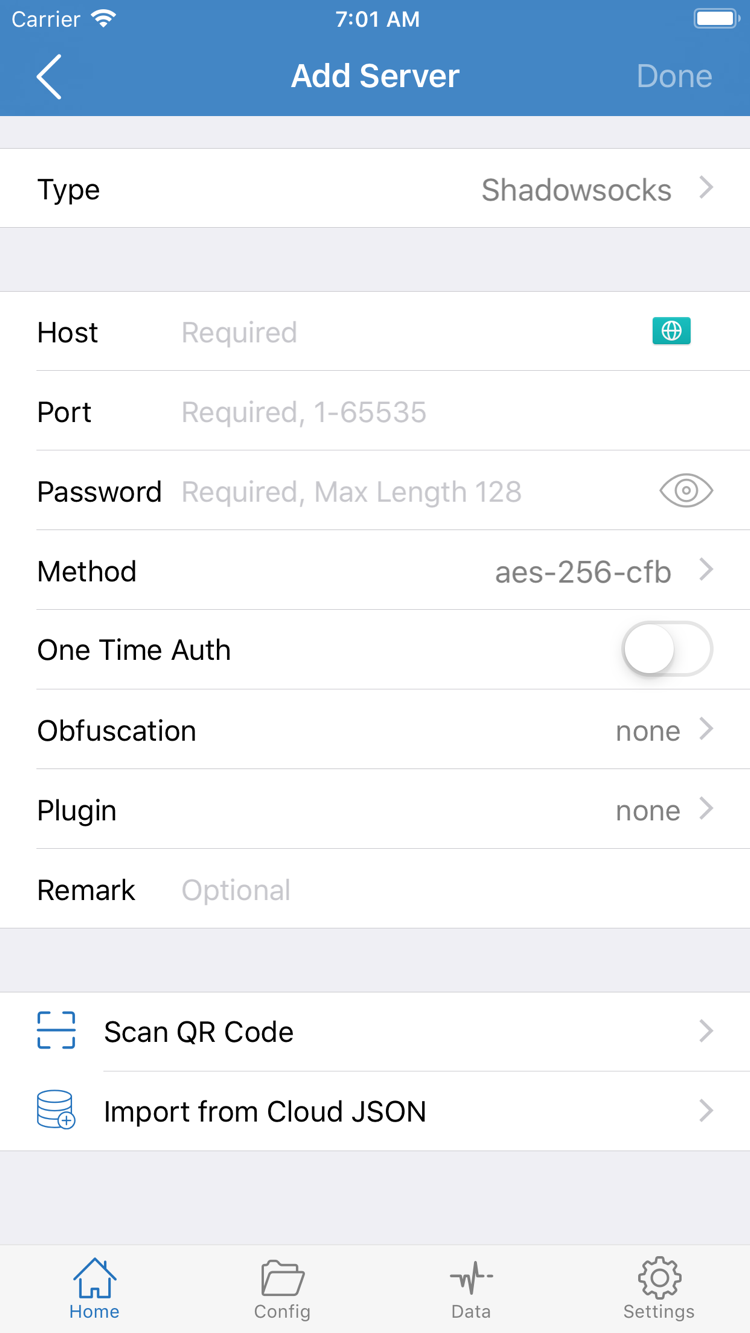
Open Shadowrocket and find the SERVER section from Home, then tap Add Server. First identify which type of details you have: a single server typically has a protocol, host address, port, and authentication fields; a subscription is a link used to retrieve a server list. Choose the method that matches the information you have. You do not need to create a server entry manually before importing a subscription.
If you have details for a single server
In Add Server, select Type, then enter the details provided by your service provider. For Shadowsocks, for example, Host is the host address, Port is the port, and Password and Method correspond to the password and encryption method. Fields may change when you select a different Type, so use the fields shown for the selected protocol. Do not reuse parameters from another protocol. When pasting an address or authentication details, check for extra spaces, line breaks, or quotation marks. If a required field is missing, check the original details rather than guessing.
If you have a subscription link
In Add Server, set Type to Subscribe, paste the complete subscription link into the link field, and save. The question mark and any parameters that follow it are part of the link; do not copy only the domain or path. Return to Home and check whether an imported entry appears under SERVER. If you see a group but no selectable servers, check the group for an update option or error message, and confirm the import result before continuing. Do not include the full subscription link or authentication fields in troubleshooting screenshots.
Whichever method you use, the next step is the same: tap the server you want to use in SERVER and confirm that the selection indicator is on that entry. Seeing an entry in the list does not mean it is selected, and selecting it does not mean it is connected. Keep the current network after selecting a server, and check Global Routing before turning on the switch.
02 Global Routing
Choose how traffic is routed
Return to Home and tap Global Routing. This setting controls how requests handled by Shadowrocket are processed after a connection is established. It does not select a server or automatically correct server details when you switch modes. To start with existing rules, select Config. Use either of the other modes temporarily to compare the path taken by a request.
- Config: Use the rules in the current configuration file to decide how requests are handled. Some requests may use a proxy, others may connect directly, and some may be rejected by the configuration. Some traffic connecting directly after you connect does not mean the rules are inactive.
- Proxy: Send traffic handled in this mode through the selected proxy server. Use it to compare with Config while keeping the server unchanged, and check whether a target is accessible through the proxy path.
- Direct: Do not route traffic through the selected proxy server. This differs from turning off the switch at the top of Home: the connection can remain active while the request routing changes.
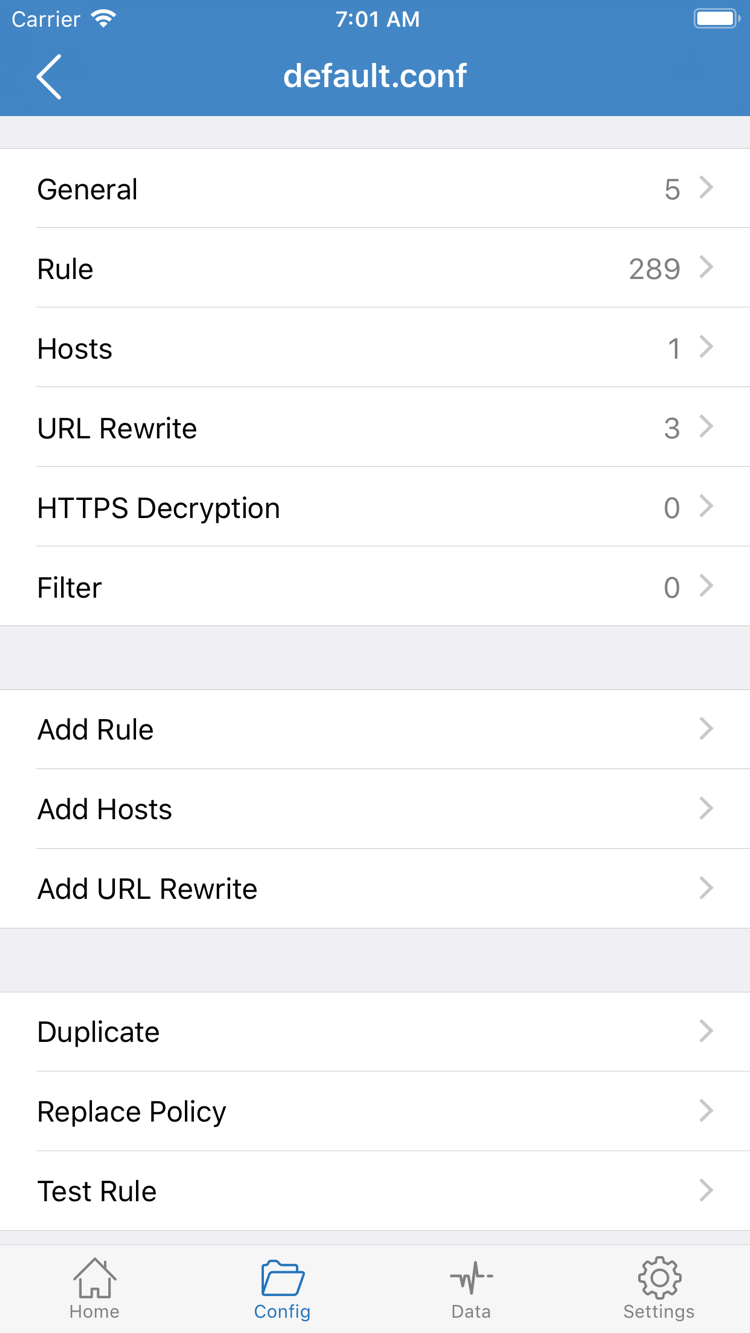
If you selected Config but are unsure which configuration is active, go to the Config page to check the active file, then open it and review Rule. General, Rule, Hosts, and other items in the screenshot are sections in the file editor, not Global Routing options on Home. If you already have a known working configuration, you do not need to change its rules before the first connection. If unsure, note the current file and mode so you do not change both the configuration and server at once.
For example, DOMAIN-SUFFIX,example.com,PROXY in a rule sends requests matching that domain suffix to PROXY. This is an example for reading a rule, not a server to add. See the glossary for rule order and FINAL. After choosing a mode, return to Home and check that the displayed Global Routing value matches your selection before connecting.
03 Home
Turn on the switch at the top of Home
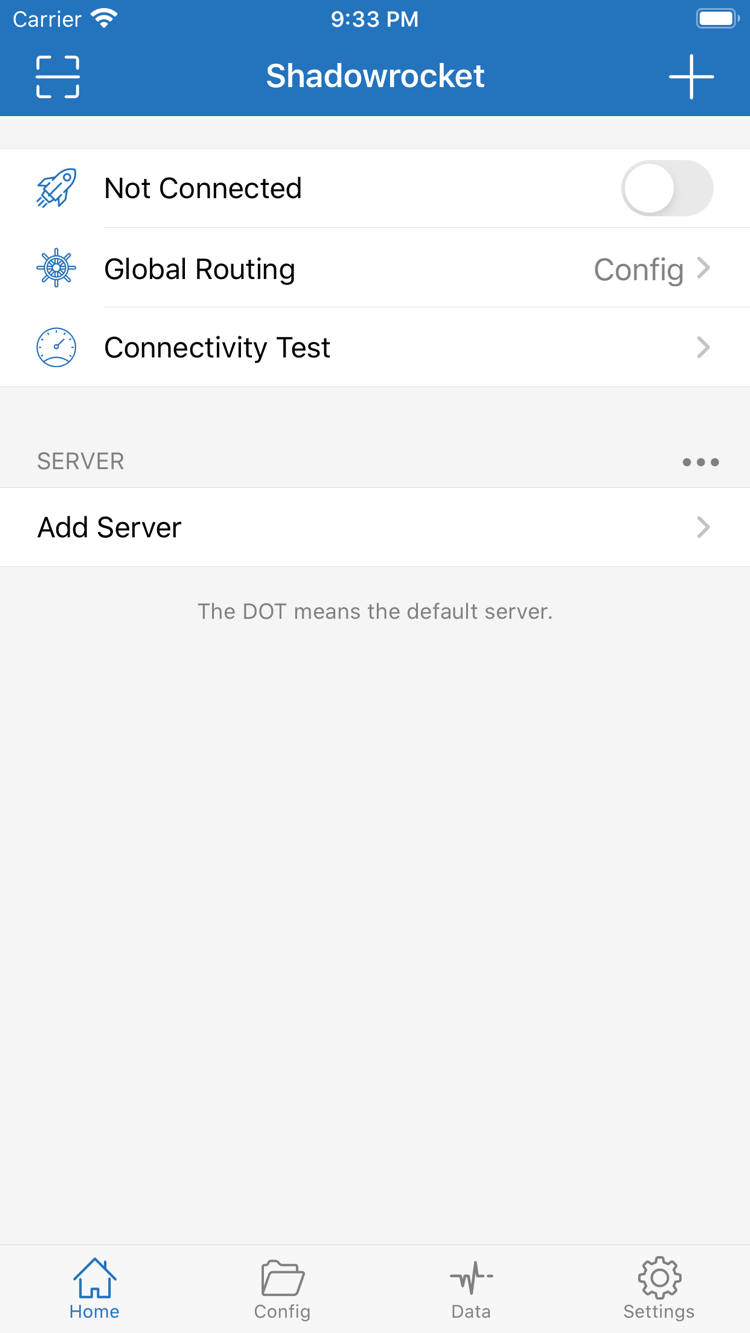
Before turning on the switch, check two things on Home: that the selected entry under SERVER is the server you intend to use, and that Global Routing shows the mode you just selected. Not Connected in the screenshot means the connection has not been established. Once confirmed, tap the switch at the top and wait for the connection status to stabilize. Do not toggle the switch repeatedly or change servers while the status is changing.
When connecting for the first time, the system may ask to allow Shadowrocket to add a VPN configuration. Confirm that the prompt corresponds to an action you just started in Shadowrocket, then follow the system instructions to authorize it. If the system requests additional verification, complete it as prompted and return to Home. If you dismissed the prompt earlier, the connection will not start automatically just because server details have been entered. Try again from Home; if it still fails, check the system VPN settings and any device management restrictions.
If the connection turns off shortly after you switch it on, keep the current server and mode selected and note whether a prompt appeared. Check whether another VPN is active in the system. If you have permission and doing so will not affect essential network access, address any conflict. For a work- or school-managed device, do not remove its management configuration; ask the administrator whether adding a VPN is allowed.
A switch that stays on only indicates that the device has enabled this connection. It does not prove the server is available or that a request matched the expected rule. Keep using the same Wi‑Fi or cellular network and continue to the next test so you can compare results more easily.
04 Connectivity Test
Test the server and check actual access
Tap Connectivity Test on Home and review the result for the server you just selected. Do not use the result for another entry in the same group as the result for this connection. Note whether the test returned a result, which network is in use, and the current Global Routing value. The same server may behave differently on different networks. For a before-and-after comparison, first test on the same network with the same server, then decide whether to switch networks.
Next, open a page you can normally access and refresh it, or open a page that has not loaded before. An old tab that still displays content does not show that a new request succeeded. If you are using Config, check one target that should connect directly and another that should use a proxy, if possible. If you cannot identify rules for both paths, record only whether access succeeded; do not conclude that routing is correct based on a single result.
If a particular target does not open, keep the same server and temporarily switch to Proxy to retry that target. If it works in Proxy but not in Config, first check the active configuration, domain matching, and the default policy for unmatched requests. There is no need to change server parameters right away. If the target fails in both modes, that alone does not prove the server is at fault; also check whether the local network and target are working normally. After comparing, restore your usual Global Routing mode.
05 Settings
Troubleshoot connection issues by symptom
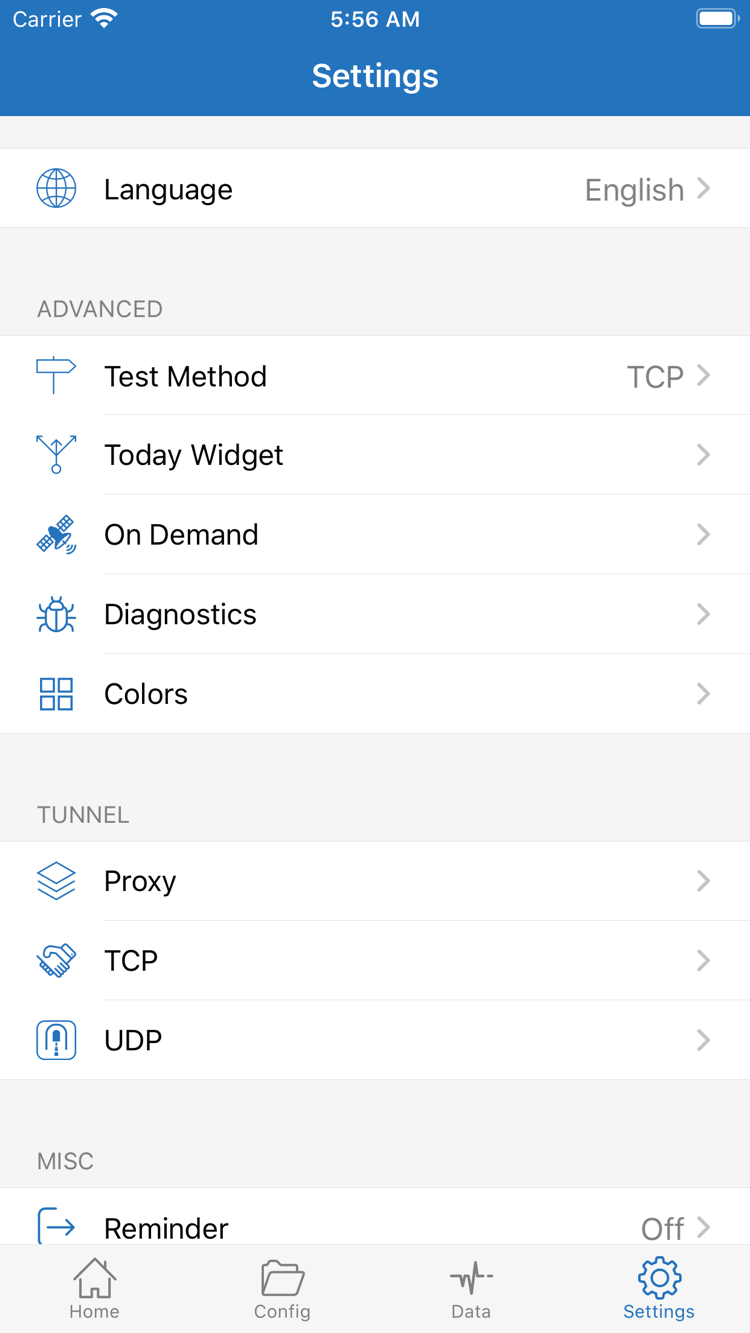
Start with the earliest step that did not work. Make a brief record of the network type, whether the Home switch stays on, whether an entry is selected, and the test result. Then open Settings and check Test Method. To compare two test results, keep the test method the same. If you need to identify which stage failed, open Diagnostics. Avoid changing several settings before finding the cause.
Subscription saved, but no servers appear
Return to Home and check whether the subscription group has selectable entries. If the list is empty, check that Type is Subscribe, the link is complete, and whether an update returned an error. If your service provider gave you a replacement link, first confirm it is not the same expired link, then update using the new one. If there is still no result, ask your service provider to confirm the link status and import method. Changing Global Routing will not fix an import issue while no server entry is available.
The switch will not stay on, or the status changes after leaving Home
First determine whether the switch fails as soon as you turn it on, or whether the status changes only after you switch networks. For the first case, check system VPN authorization and conflicts. For the second, check in Settings whether On Demand is enabled and whether the current network meets its existing conditions. If you need to rule out On Demand as a cause, note the original setting, compare with a manual connection, then restore the original setting after testing.
Server test fails, or only a particular target will not open
If the test fails, first confirm the device can access the internet without Shadowrocket, then check that the selected server's Type, Host, Port, and authentication fields match the details from your service provider. If the server test returns a result but only a particular target fails, return to the verification steps, compare Config and Proxy for the same target, and check the rules based on the result. Change one setting at a time and repeat the same test. Otherwise, even if the issue is resolved, you will not know which change made the difference.
If you need help, provide the exact error message, the step where it occurred, and the comparisons you have already made. Do not include complete server credentials or a subscription link. See Frequently Asked Questions for common issues. For more details about Test Method, On Demand, or Diagnostics, see the settings guide.